SynergyAI

Visual Studio

AI image generator and AI photo editor

Type a prompt, pick GPT Image 2, Nano Banana Pro or Grok Imagine HQ, and get the picture. Editing is describing the change.

Text to image in four steps

Your first picture is one prompt and one press away.
  1. Describe the pictureWrite up to 8,000 characters in a single input bar.
  2. Boost it if you likePrompt Boost is a priced rewrite that adds light, framing, atmosphere and style; you can still edit the wording.
  3. Pick an engine and a ratioThree engines with two tiers each, and a ratio row that only offers shapes that engine renders.
  4. Press CreateThe picture comes straight back — no queue to watch.

In detail

Prompt Boost

  • Separate briefs for image, edit, video and convert, tuned to your engine and ratio
  • A shots mode suggests 3–5 shots for a scene
  • Refunded automatically if the boost itself fails

Three image engines, two tiers each

Pick an engine and a tier from the Engine pill; each engine suits a different job.
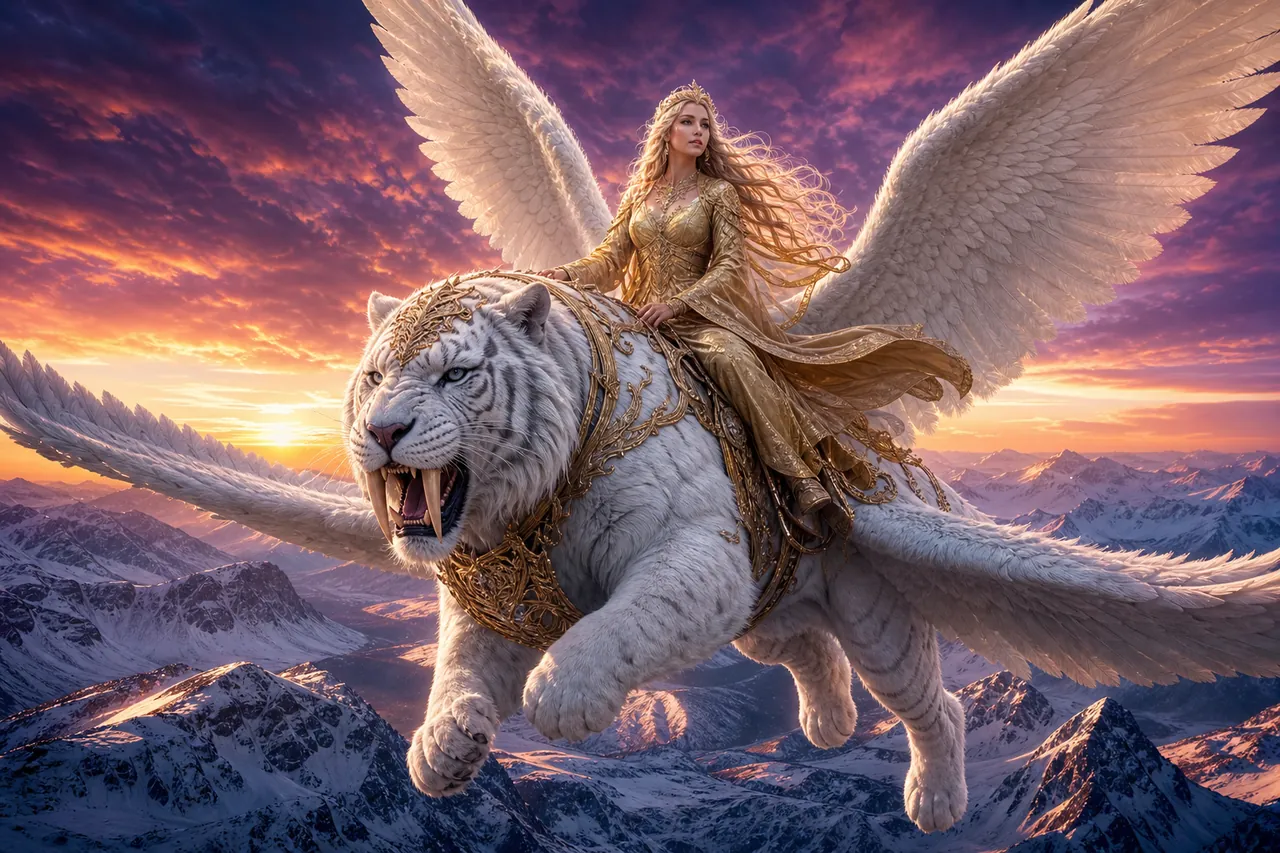
One idea, two engines two separate prompts on the same idea
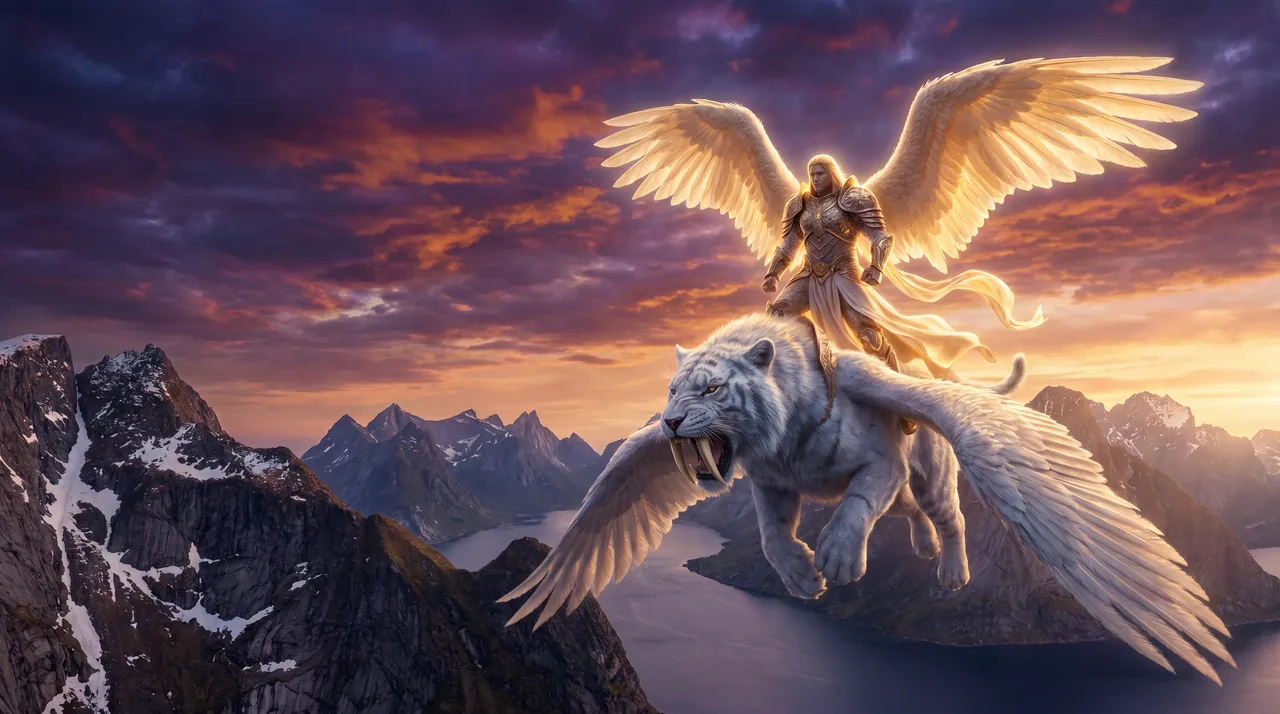
An angel in golden robes on a winged white sabertooth tiger above snowy mountains at dusk, rendered on GPT Image 2 (HD)
GPT Image 2 (HD)delivered 1536×1024A majestic angel with large feathered white wings, dressed in flowing golden robes, sitting gracefully on top of a powerful white sabertooth tiger that also has large feathered wings, both soaring high above dramatic Scandinavian mountain ranges…
An angel on a winged white sabertooth tiger above a mountain fjord at dusk, rendered on Nano Banana Pro (4K)
Nano Banana Pro (4K)delivered 5504×3072A radiant angel with large feathered wings sitting gracefully on top of a majestic white sabertooth tiger with enormous feathered wings, soaring high above dramatic Scandinavian mountain ranges…
Engine Tiers Use it for Aspect ratios
GPT Image 2SD, HDEveryday concepts; HD for photoreal detail and sharp text1:1, 16:9, 9:16
Nano Banana Pro2K, 4KPremium composition and typography: hero stills, ads, posters1:1, 16:9, 9:16, 4:5
Grok Imagine HQ1K, 2KDetailed compositions; 2K for large-format and print-ready art1:1, 16:9, 9:16

In detail

Ratios, sizes and who makes each engine

  • 9:16 suits stories and reels; 4:5 portrait is on Nano Banana Pro only
  • Nano Banana Pro keeps the ratio you picked even when a reference photo is a different shape
  • GPT Image 2 delivers 1024x1024, 1536x1024 or 1024x1536, and the tooltip names the true ratio — 16:9 arrives as 3:2
  • Switch engines and an unsupported ratio is adjusted to one the new engine renders; edits across engines keep the source orientation
  • GPT Image 2 is OpenAI's model; its HD tier uses OpenAI's medium quality setting, SD the low one
  • Nano Banana Pro is Google's Gemini 3 Pro image model; Grok Imagine HQ is xAI's
  • Grok Imagine HQ edits take one reference photo and cannot set an aspect ratio

Edit an image by describing the change

Press Edit on any result and type what should change; the picture on screen is the starting point, and the model is asked to keep what you do not mention.
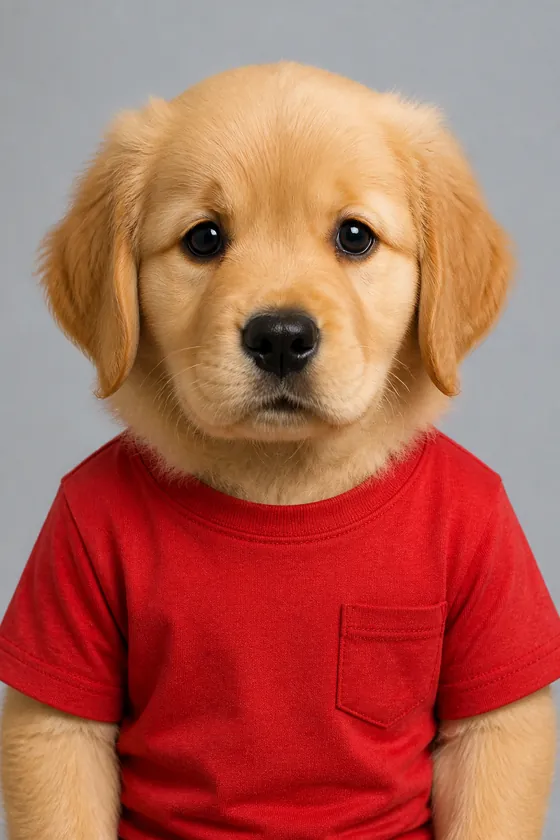
A reference plus a described change real render · GPT Image 2 (SD)
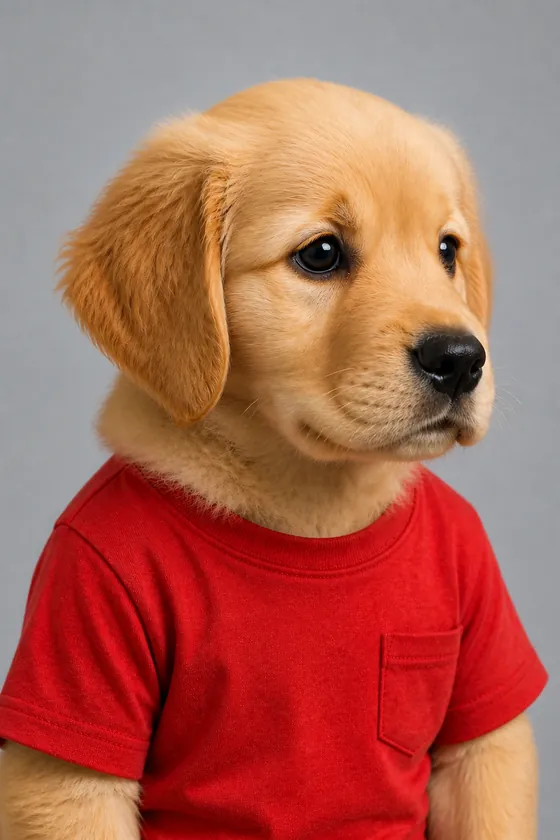
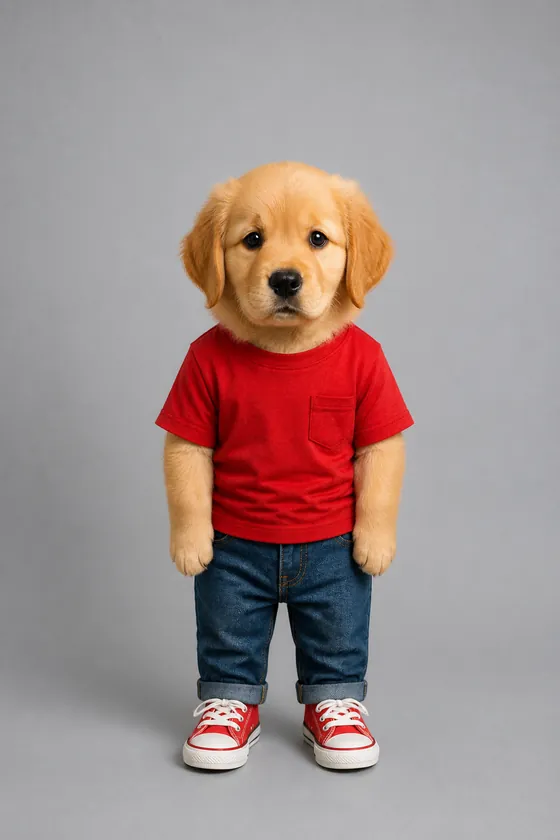
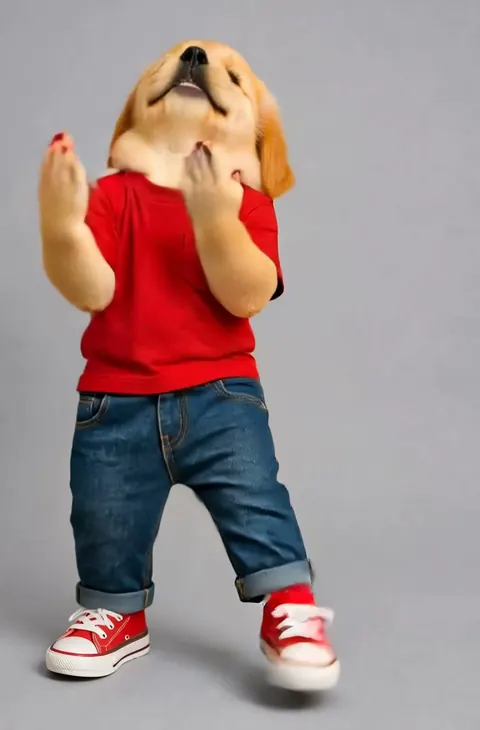
The reference: a saved character, a golden retriever with a child’s body in a red T-shirt, front view
The referenceA saved character’s front view
The new scene, as typed Animated jungle with a lot of trees and a river somewhere in the back The model was asked to preserve same facesame bodysame wardrobesame hair
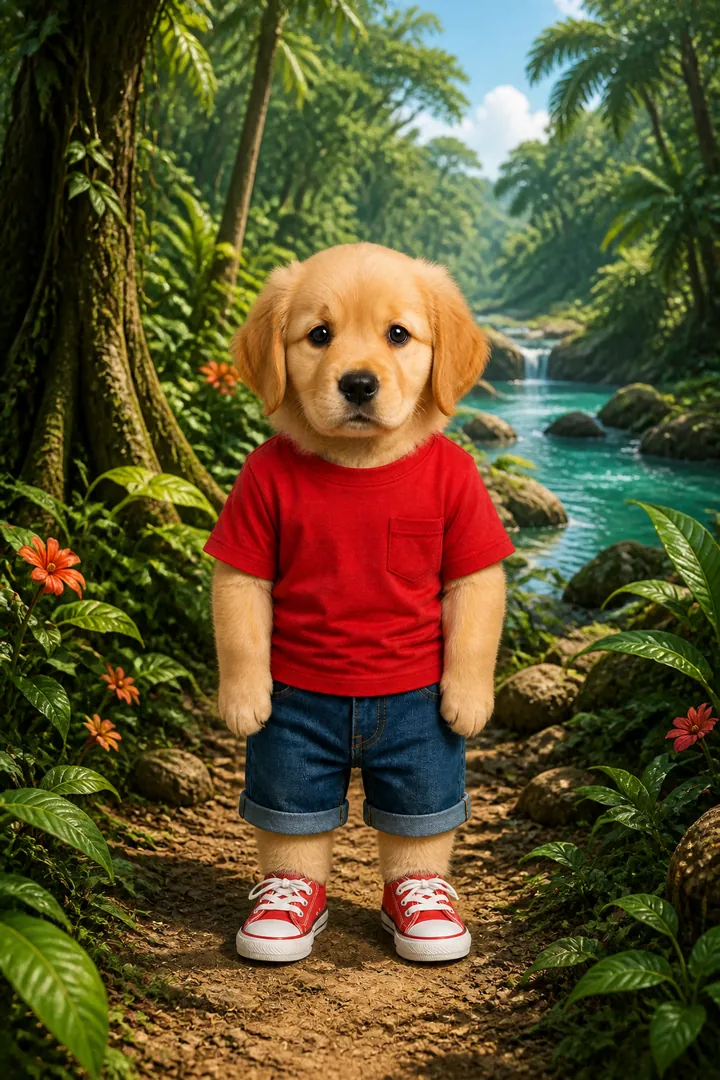
The same character standing on a path in an animated jungle, a river in the background
The new sceneGPT Image 2 (SD)

Made from a saved picture used as the reference, with the new scene described in words.

  • Edit any resultYour next prompt changes that picture instead of starting a fresh render.
  • What you leave out is meant to stayThe model is asked to keep subject, people, faces, objects and setting unless you say otherwise.
  • Switch engines mid-editThe current picture becomes the new engine's reference.
  • Add up to 5 reference photosGenerate from your own photos — PNG, JPEG or WEBP, 10 MB each.
  • Location data is stripped firstPhotos are re-encoded in your browser, removing EXIF and GPS data before upload.
  • See when a photo is skippedIf an engine cannot use a photo, you see "generated from text only".

In detail

References and edit mode

  • GPT Image 2 uses up to 4 references, Nano Banana Pro all 5, Grok Imagine HQ exactly 1
  • References clear after each render, so they never carry into the next one
  • Edit mode ends after a successful render; you opt back in each time

AI product photography from one photo

Upload a photo of your product and get a multi-angle commercial shoot — packshots, or the product worn, held or used by a generated model.
  • 8solo angles, from front and back to top-down and detail
  • 5photoshoot looks, from catalogue white to dark studio
  • 15product categories that order the shots and set the lens
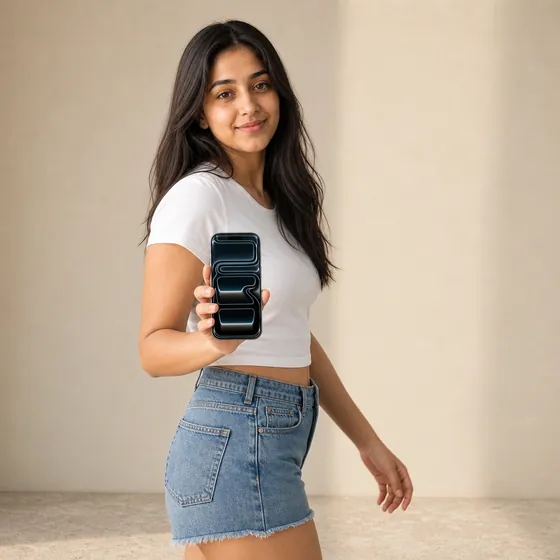
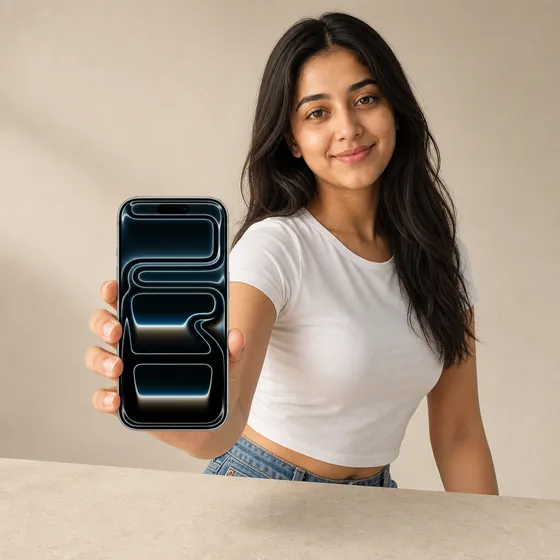
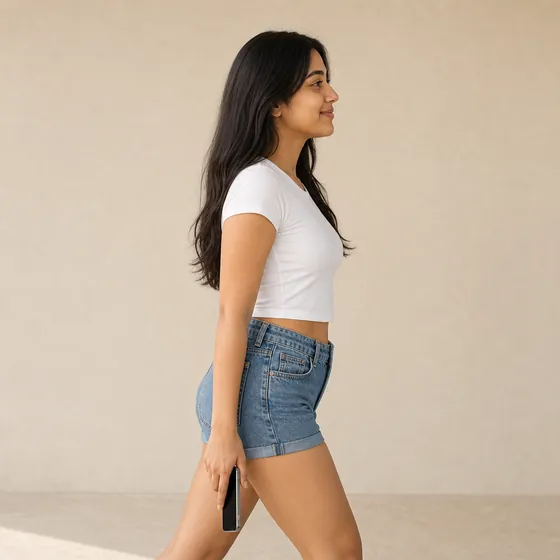
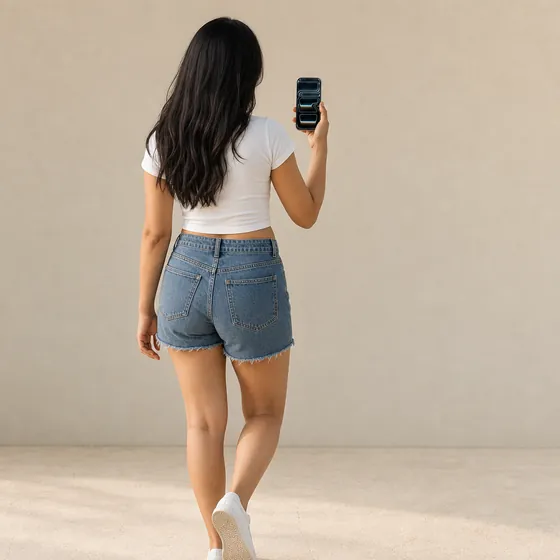
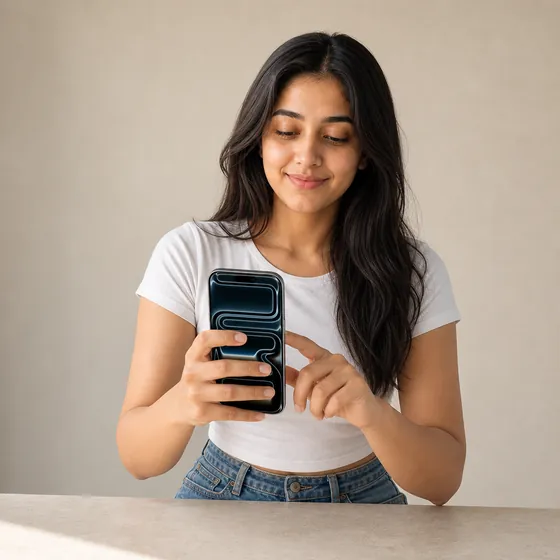
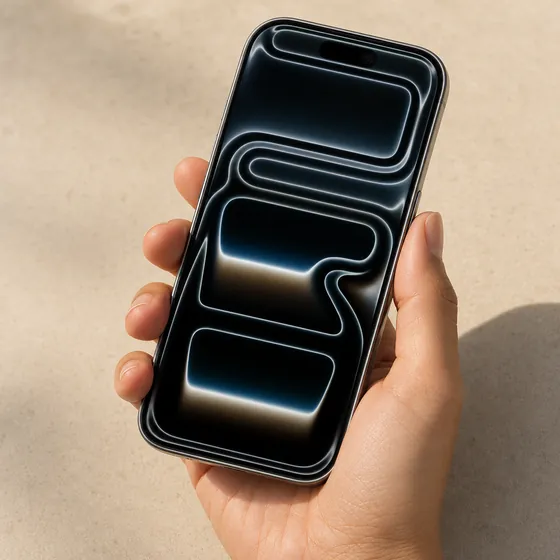
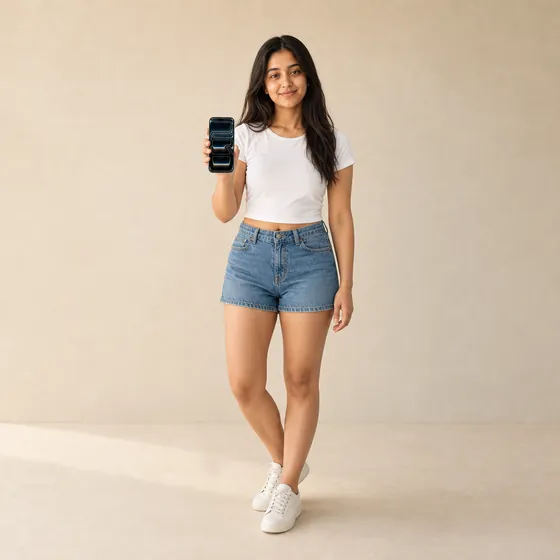
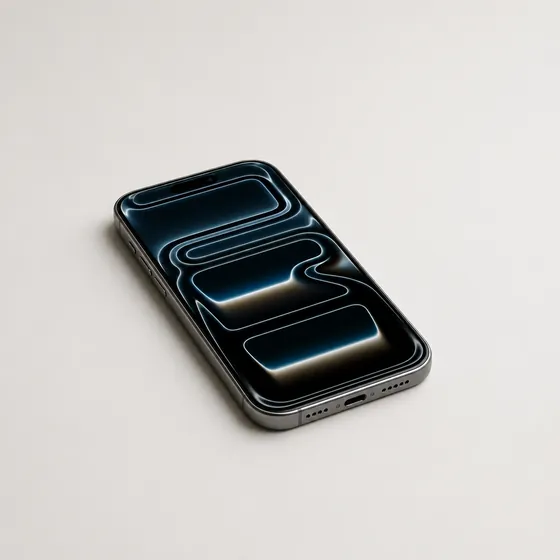
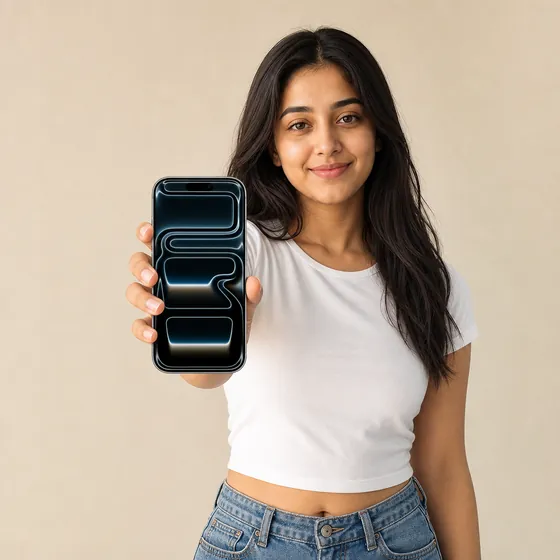
On a model Natural daylight a phone · 8 views · GPT Image 2 (HD)
  • Front view of a phone, held by a modelFlagged
    Front
  • ¾ Left view of a phone, held by a model
    ¾ Left
  • ¾ Right view of a phone, held by a model
    ¾ Right
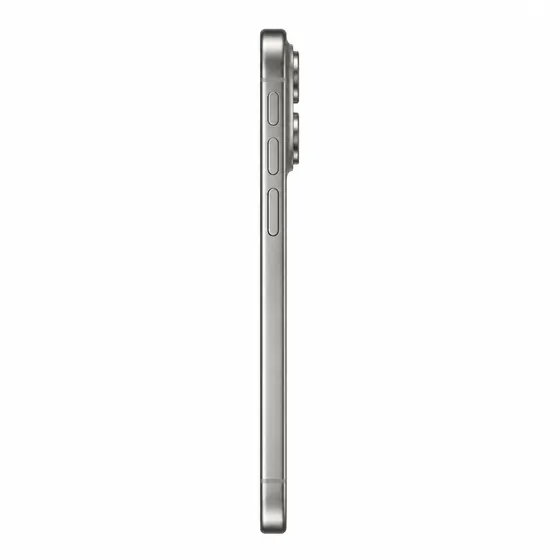
  • Side view of a phone, held by a model
    Side
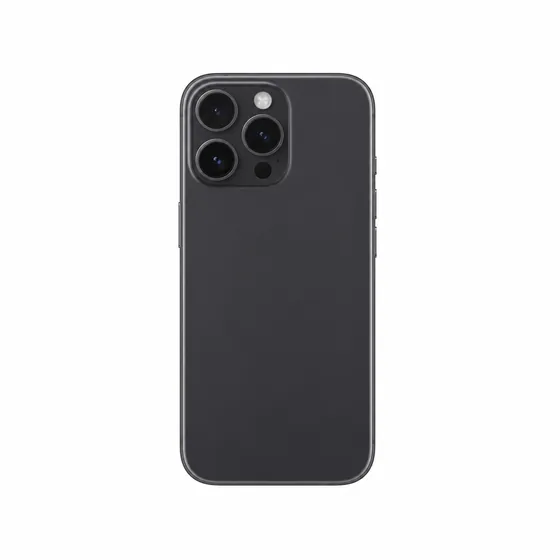
  • Back view of a phone, held by a model
    Back
  • In use view of a phone, held by a model
    In use
  • Detail view of a phone, held by a model
    Detail
  • Scale view of a phone, held by a model
    Scale

FlaggedFront — the product check said This side shows printing your photo never showed.
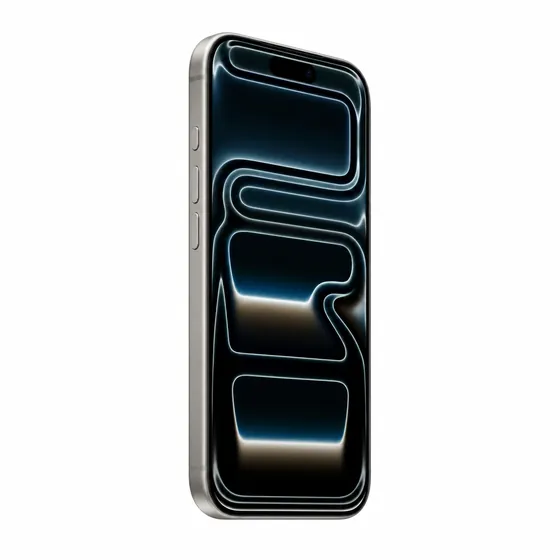
Solo Catalogue white
  • ¾ Left view of a phone on a white backgroundFlagged
    ¾ Left
  • Back view of a phone on a white background
    Back
  • Side view of a phone on a white background
    Side
  • On surface view of a phone on a white background
    On surface

Flagged¾ Left — The shape or proportions differ from your photo.

  • Your packaging stays yoursNo invented back-of-pack text, barcodes or batch codes, and screens stay dark unless your photo shows them lit.
  • A free product checkEach view is compared with your photo and flagged if a difference is spotted. If the check cannot run, no flag shows.
  • Change one thing, keep every takeType a short fix on any view and only what you name changes. Earlier versions stay one tap away.

In detail

Angles, looks and categories

  • Solo angles: Front, ¾ Left, ¾ Right, Side, Back, Top-down, On surface, Detail
  • Shoots with a model add In use, Detail and Scale
  • Looks: Catalogue white, Natural daylight, Dark studio, Colour pop, Texture proof
  • Categories: apparel, footwear, bags, jewellery, watch, face-worn, beauty, personal care, handheld tech, appliance, furniture, food & beverage, OTC health, kids, generic
  • A category reorders the shots and picks the lens — 100mm macro for jewellery, 85mm for beauty and food — but never removes an angle

Uploads, fixes and what you pay for

  • A front photo is required; optional back and side photos mean those angles are shown, not guessed
  • Describe a model once and the same person appears in every view
  • Opt-in restriction presets for categories that need them, including intimate apparel, swimwear and sleepwear, and alcoholic drinks
  • Fixes run up to 240 characters, and you see the rewritten instruction and the price first
  • Views render on GPT Image 2 HD whatever engine the composer is set to, priced per view; saving the product is free

Reusable characters and locations

Design a character or a place once, lock its look, and reuse it across scenes and stories.
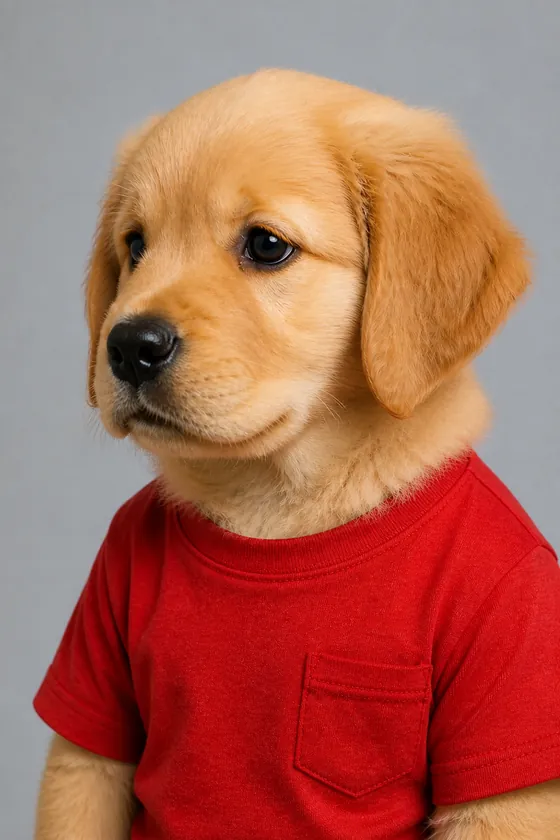
Character Subu 8 identity-locked views
  • Front view of the character Subu, a golden retriever with a child’s body
    Front
  • ¾ Left view of the character Subu, a golden retriever with a child’s body
    ¾ Left
  • ¾ Right view of the character Subu, a golden retriever with a child’s body
    ¾ Right
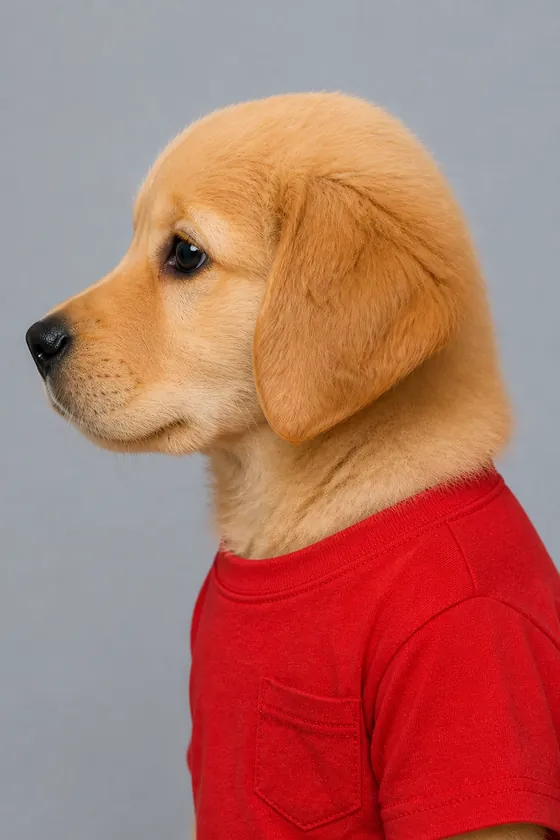
  • Profile view of the character Subu, a golden retriever with a child’s body
    Profile
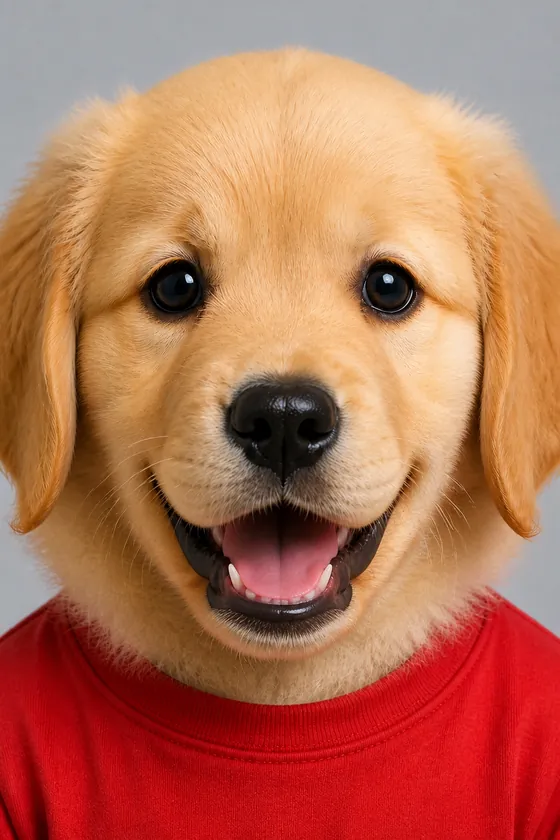
  • Smile view of the character Subu, a golden retriever with a child’s body
    Smile
  • Full body view of the character Subu, a golden retriever with a child’s body
    Full body
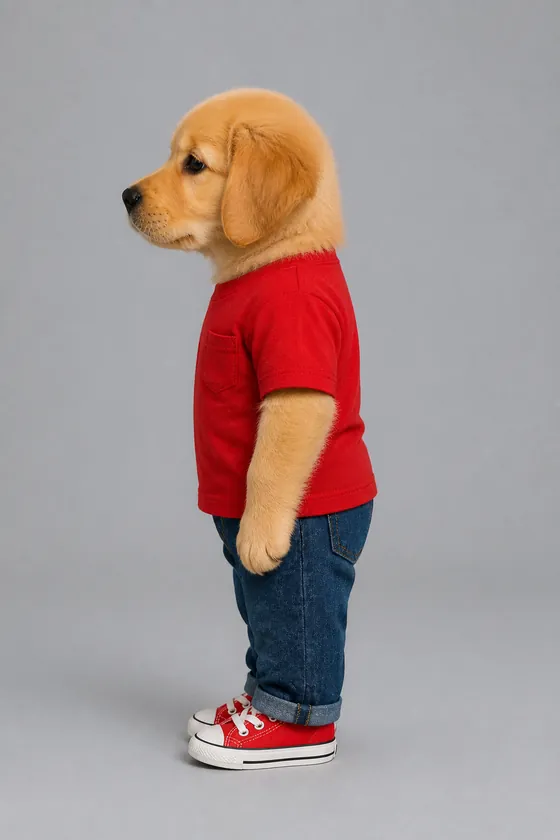
  • Standing profile view of the character Subu, a golden retriever with a child’s body
    Standing profile
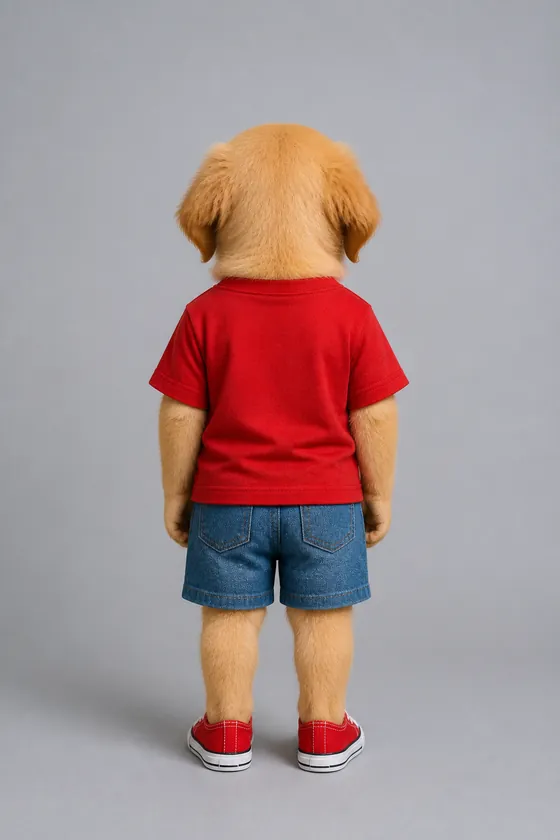
  • Standing back view of the character Subu, a golden retriever with a child’s body
    Standing back
  • Saved descriptionA golden retriever with a body shaped like a human child with the fur of actual golden retriever…
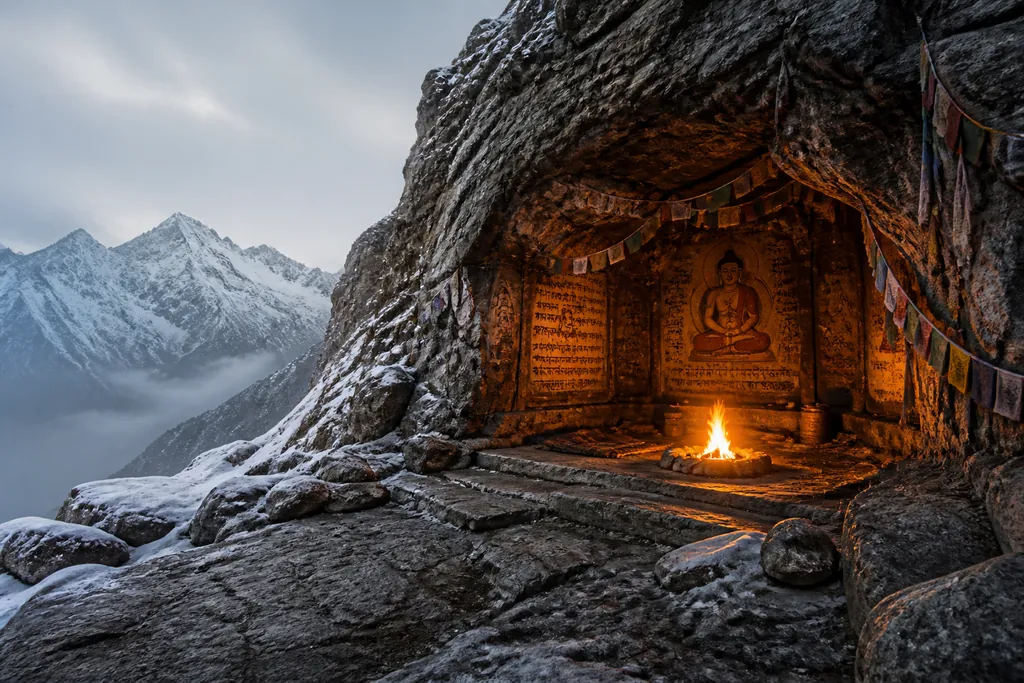
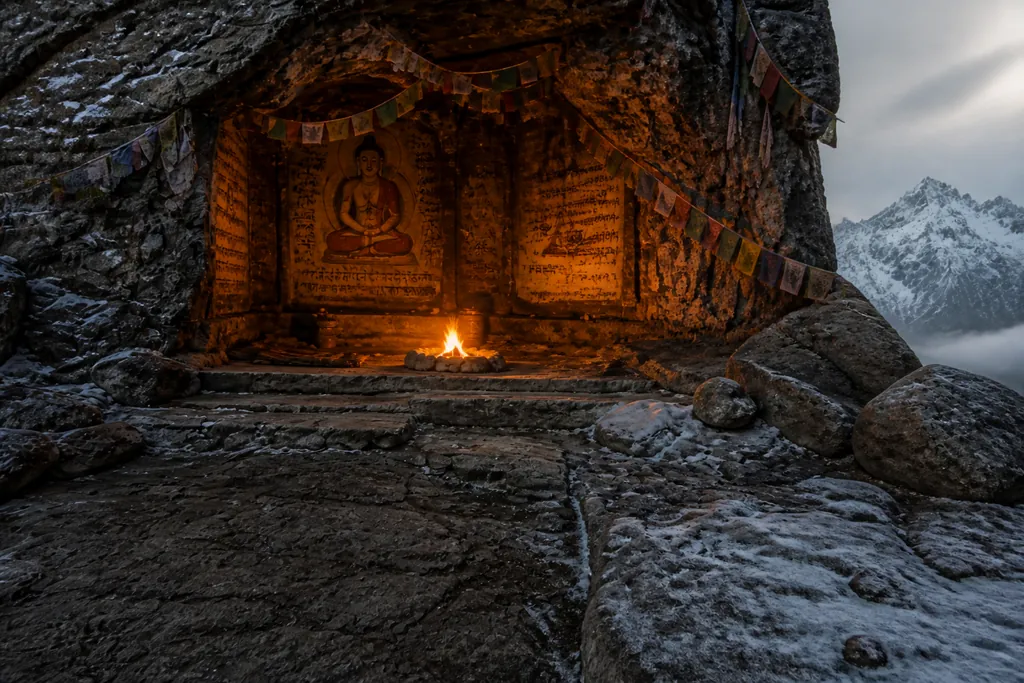
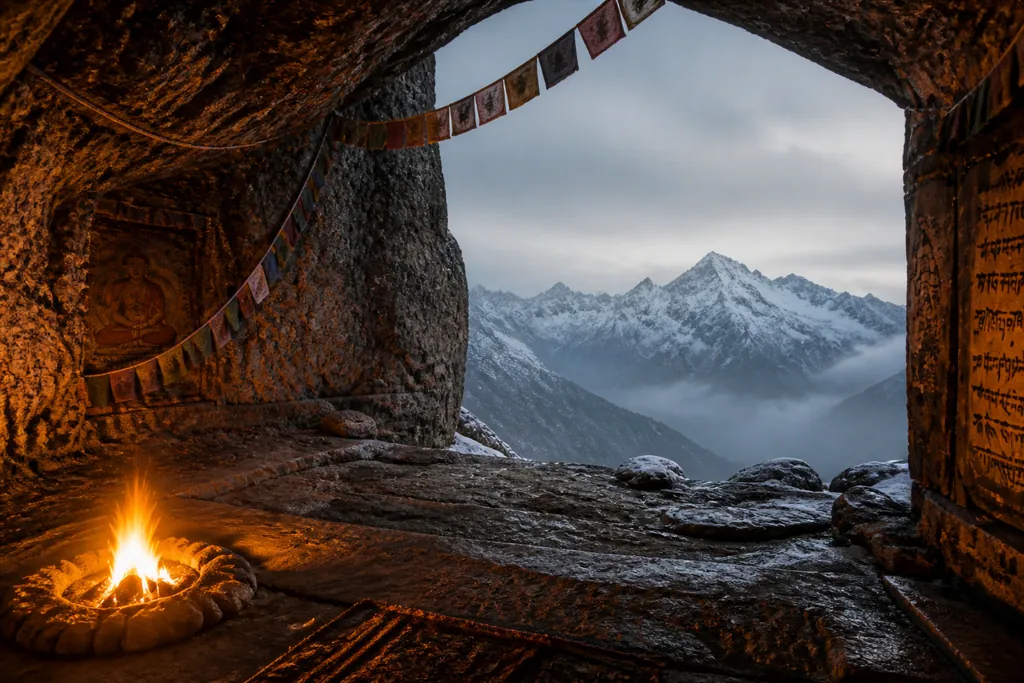
Location A meditation cave 3 views
  • A meditation cave in the mountains lit by a bonfire: wide establishing shot, no characters
    Primary viewWide establishing shot, no characters
  • A meditation cave in the mountains lit by a bonfire: the entrance and approach
    Area 1The entrance and approach
  • A meditation cave in the mountains lit by a bonfire: the far end, looking back across
    Area 2The far end, looking back across

Saved descriptionA meditation cave deep in the mountains with scriptures, ancient artwork and scripts on the wall places a bonfire, it must be super realistic photo realistic

  • Eight views of one characterFront, three-quarter, profile, smile, full body and standing views, with the same face and build.
  • Start from words or photosDescribe the character, or upload up to 6 JPG or PNG photos you own or have consent to use.
  • Pay only for the views you tickUntick a slot and it is not generated. A failed view can be retried, charged only if it lands.
  • Give them a voiceAdd 5–30 seconds of clean audio for consistent speech in Story Mode, at no charge.
  • Build a location onceA wide establishing shot plus up to five named areas — same architecture, palette, weather and light, never with characters in frame.
  • Plan the areas firstDescribe the place and each area is named and briefed at no charge, never overwriting your own labels.

In detail

Character and space details

  • Character views render at 4:5; spaces at 16:9 by default, or 9:16
  • Both render on GPT Image 2 HD whatever engine the composer is set to, priced per view; saving a character is free
  • Pick them from the cast and space pickers when you build a scene or story, or reopen one from your library to replace a single view

Turn an image into video, then keep it in your library

Every result has the same action row, so animating, editing or sharing it is one tap away.

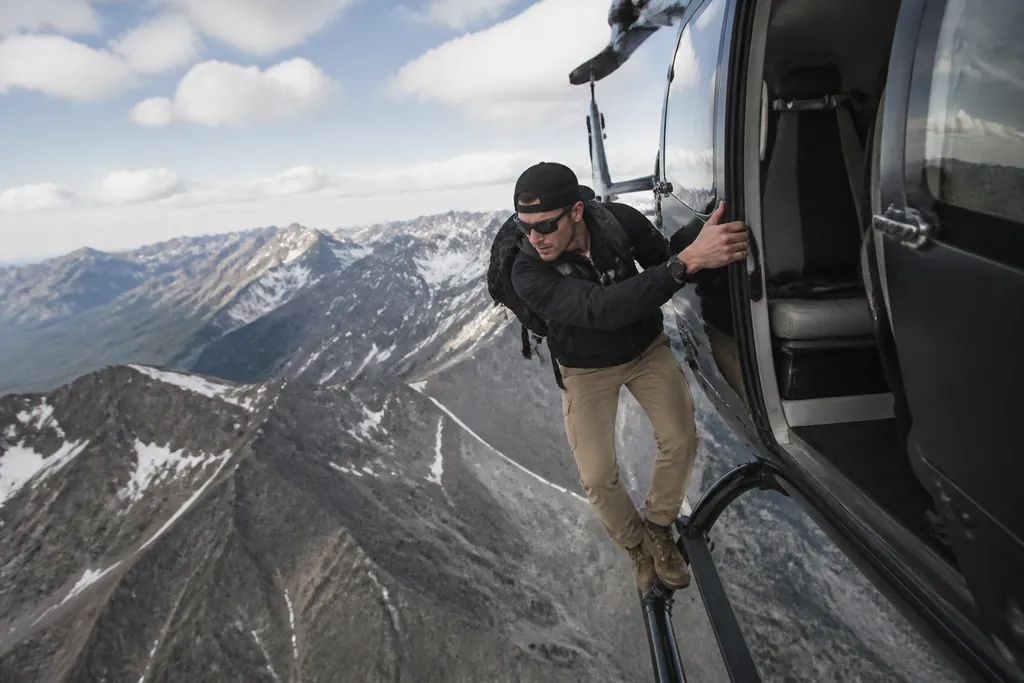
Convert to videoa still → a 5-second clip
The still the clip starts fromThe still 0:05

Motion prompt, as typedlet the man keep hanging on, then he suddenly let's go and starts to fall. The camera must follow him, and at the end, he opens a parachute.

Motion Control
0:21

Kling Motion Controlframed to the motion clipA character performs a dance taken from a reference clip.

  • Convert to videoOne tap sends the image to the video engines as the first frame, keeps its ratio, and asks how it should move.
  • Motion ControlUpload a character photo and a motion clip; your character performs the movement, with the clip's original audio kept.
  • One action row on every resultDownload, Share, Retry for a new variant, Edit, Create new and Convert to video.
  • The Exposé libraryYour photos, videos, stories, characters, spaces and products in one grid, with saved assets reopening for editing.

In detail

Convert to video and Motion Control

  • Convert to video starts as a silent standard clip; change duration, resolution and sound before you generate
  • Motion clip: MP4 or MOV, at least 3 seconds, up to 100 MB
  • Character photo: JPEG or PNG, up to 10 MB — or pick a saved Character
  • Motion clips up to 10 seconds when framed to your photo, up to 30 when framed to the clip; output at 720p or 1080p
  • Charged when the job completes, by clip length measured from the file, with a minimum charge

Library, Story Mode and the phone

  • Filter by aspect ratio; frames follow each image's shape, so nothing is centre-cropped
  • Story Mode frames keep their own engine, and a Format chip locks the story's ratio
  • On your phone, Visual Studio has the same engines and tiers, reference photos, Prompt Boost, and Motion as its own mode
  • You are never charged for a render the phone already gave up on

Motion Control results have no Retry, because your uploads are deleted once you submit.

Pricing, safety and privacy promises

One account covers every studio — top up as you go, or choose a monthly Pro or Studio plan — and these promises hold on every composer render.

  • See the price before you pressEach tier's price is on its chip, and the live cost is on the Create button.
  • Charged only when an image existsA failed render costs nothing, and the message names the real cause — overload, timeout or a content refusal.
  • The engine you pick is the one that runsNo silent downgrade to a cheaper model when a provider is busy.
  • Screened before anything startsYour prompt and reference photos are checked first. If the prompt check is down, the render is refused before you are charged.
  • A private mode that stores nothingForget & Burn sends images to your browser, keeping no file, prompt or generation record. Only the charge is recorded.
  • Style hints stay opt-inAn aesthetic hint drawn from your profile is off by default and never overrides what you wrote.

In detail

Screening and privacy

  • Blocked content comes back with a reason; an outage message says plainly it is not your prompt
  • If photo screening cannot run, the render goes ahead once your prompt is screened
  • Forget & Burn is one of the modes on the header switch; the charge is still recorded, and Story Mode saving is blocked
  • Once you opt in, the hint is one short note added to your prompt, like "(aesthetic: layered, painterly, unexpected)"

Frequently asked questions

Which AI image models can I use on SynergyAI?

Three engines with two tiers each: GPT Image 2 in SD and HD, Nano Banana Pro in 2K and 4K, and Grok Imagine HQ in 1K and 2K. Pick the engine and tier from the Engine pill. The phone offers the same three.

How much does one AI image cost?

It depends on the engine and tier you pick. The live price is on the Create button before you press it, and a render that fails costs nothing. One account covers every studio — top up as you go, or choose a monthly Pro or Studio plan.

Can I edit an AI image by typing what to change?

Yes. Press Edit on any result and type the change. The picture on screen becomes the reference, and the model is asked to keep the subject, people, faces, objects and setting unless you say otherwise. You can also switch engines mid-edit, and the current picture becomes the new engine's reference.

Can I generate product photos from one photo of my product?

Yes. Create a Product takes a front photo, plus optional back and side photos, and renders eight solo angles or the product worn, held or used by a generated model, across five looks and fifteen categories. A check flags views where it spots drift, at no charge, and silently passes if it cannot run.

Can I keep the same character across different images?

Yes. Create a Character renders up to eight identity-locked views, from front and profile to full body, from a description or your own photos. You pay only for the views you tick, and saved characters are reusable across scenes and stories, and editable later.

Which aspect ratios can I use?

Every engine offers 1:1 square, 16:9 wide and 9:16 vertical; Nano Banana Pro adds 4:5 portrait. The ratio row only shows what the selected engine renders, and on GPT Image 2 the tooltip names the true delivered ratio when it differs from the label.

Can I turn an AI image into a video?

Yes, two ways. Convert to video sends a finished image to the video engines as the first frame, keeps its aspect ratio and asks how it should move. Motion Control moves a character photo the way a reference clip moves, keeping the clip's original audio.

Can I generate images without anything being saved?

Yes — turn on Forget & Burn, a private mode in the header. The image comes straight back to your browser with no stored file, no saved prompt and no record of the generation; only the charge is recorded. If Burn cannot be confirmed, the request is refused rather than saved.

Make your first image

Start from a line of text or a photo of your product, then change the result by describing what you want.