SynergyAI

Visual Studio · Video

AI video generator — Kling, Seedance, Veo and Grok in one studio

Five named engines — Kling V3, Kling V3 Omni, Seedance 2.5, Veo 3.1 and Grok — behind one prompt box, each with its real limits published.

Text to video and image to video, from one prompt box

Describe a shot or attach a photo, pick one of five engines and get a clip — no second tool to learn.

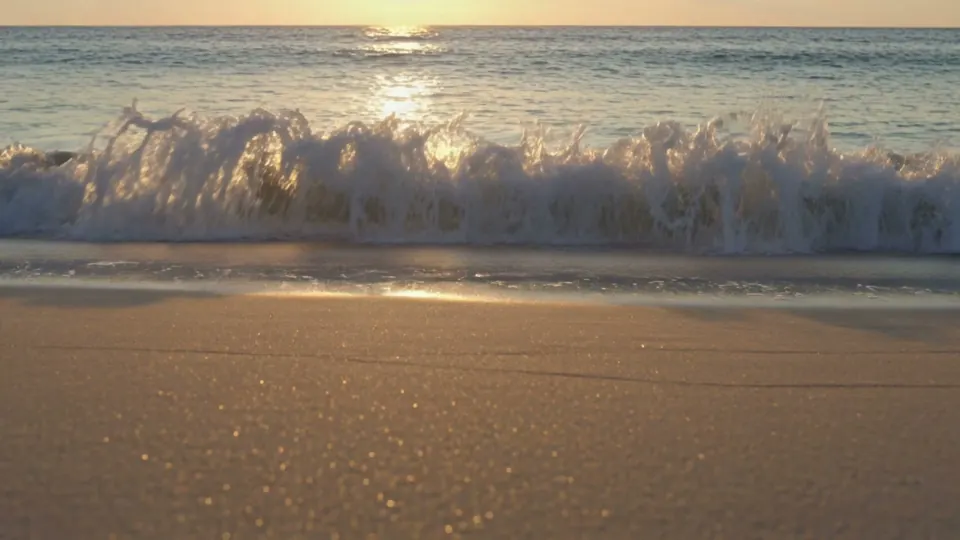
Text to videoKling V3 · 15 s · 720p · sound off
0:15

Prompt, as typedA calm turquoise ocean wave rolling onto a sandy beach at golden sunset, cinematic, photoreal
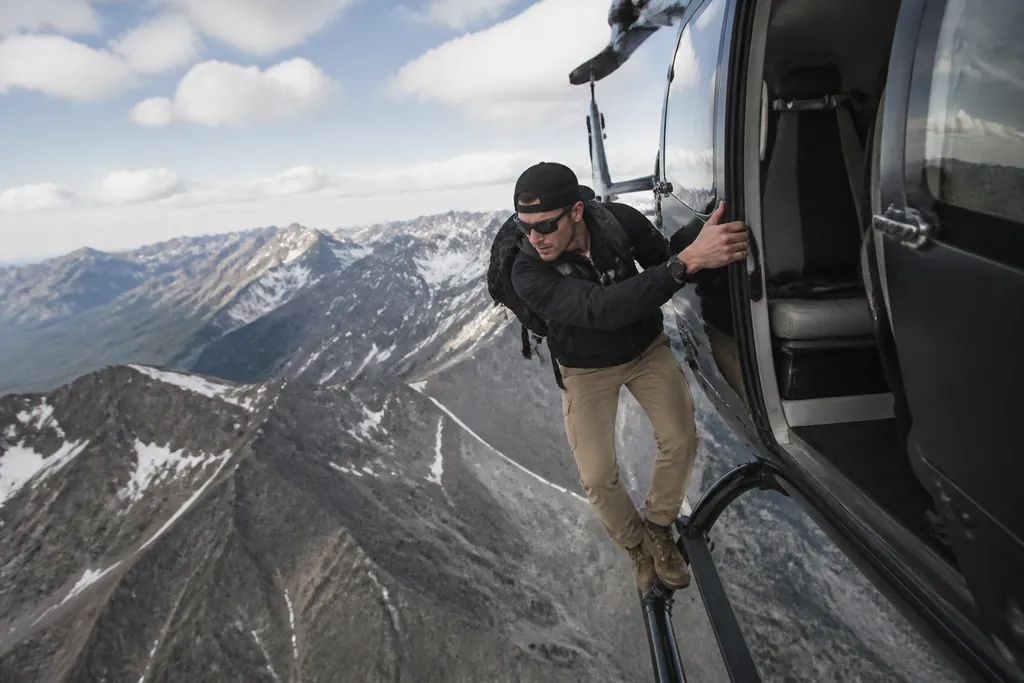
Image to videoa still → a 5-second clip
The still the clip starts fromThe still 0:05

Motion prompt, as typedlet the man keep hanging on, then he suddenly let's go and starts to fall. The camera must follow him, and at the end, he opens a parachute.

  1. Write the shotDescribe it, or let Prompt Boost turn one line into a full shot brief for your engine.
  2. Add a photo if you likeUpload a reference image or pick a stored one to render image-to-video.
  3. Pick the engine and settingsLength, resolution, aspect ratio and sound, limited to what that engine accepts.
  4. Press CreateYour clip renders on the engine you picked; press Retry for another take of the same idea.
  • Tall stays tallIf an engine lacks your ratio, it is matched by orientation, so a tall shot never renders wide.
  • Clips stay yoursFinished clips move into our private storage, so they do not depend on a vendor link.
  • Settings follow youThe same studio on your phone, with your engine and settings restored on your next visit.

A saved setting a new engine cannot use is dropped, never silently swapped.

Story Mode — a long-form film, scene by scene

Make something longer than one clip: build the story scene by scene yourself, or hand The Director agent one brief and get a finished film.

The Director A finished film Biscuit’s butter chicken · 5 scenes · 30 s · with sound · Kling V3
0:30
The Director: from 30 seconds up to three hoursIt plans long films 40 scenes at a time

Build it yourself

Story Mode

  • Render a scene, then start the next one from its final frame
  • Pick one engine per story — Standard, Professional, Ultra or Grok
  • Trim each clip on a filmstrip before the next, then combine in your browser
  • Stories save, so you can come back and keep going

Hand it one brief

The Director

  • Pitches three creative directions with loglines, then commits to one
  • Holds one palette across the film and writes every shot
  • Renders each scene from its keyframe, with continuity between them
  • Stitches one finished MP4 into your Files
Story Modea real one-scene story from our own account
The keyframe: a golden retriever sitting on top of clouds
Keyframe
0:05
Scene 1 clip
The clip’s last frame, captured to open the next scene
Last frame → scene 2

Keyframe prompt, as typedhyper realistic image of a golden retriever sitting on top of clouds

Motion prompt, as typedmake the golden retriever run on the clouds and then start jumping from one cloud to another

Story Mode kept the clip’s last frame, ready to open scene 2.

  • Continuity across the cutEach continuing scene opens on the previous clip’s final frame.
  • DirectorCharacters that holdUp to three saved characters anchor every fresh shot.
  • DirectorSound that matchesEvery Director film renders with native audio, uniform across scenes.
  • DirectorFix one sceneRe-render one Director scene and see the most it can cost first.
  • DirectorRe-cut and subtitleReorder or drop Director scenes and build SRT subtitles, free.
  • DirectorYour music underneathLay a track you made on SynergyAI under a Director film, or swap it in.

Story Mode’s combined download is silent; each scene clip keeps its own sound.

In detail

Story Mode engines, trim and combine

  • Standard (Kling V3) and Professional (Kling V3 Omni): 3–15s, at 720p, 1080p or 4K
  • Ultra (Seedance 2.5): 4–30s, at 480p, 720p or 1080p · Grok: 1–15s, at 720p · no Veo 3.1
  • Sound follows one setting across the story, so the scenes cut together cleanly
  • Trim with a filmstrip, drag handles, a playhead and in and out points
  • Combine runs on your own machine at no extra cost, since the scenes are already paid for
  • The combined file is MP4 (H.264) where your browser can record it, otherwise WebM

The Director: runtime, planning and engines

  • Runtime is set in minutes (0.5 is a 30-second film) and capped at 180, with a hard ceiling of 1,800 scenes
  • Claude Sonnet 5.5 plans the scenes 40 at a time, each batch continuing the last
  • The planner knows each engine's real scene length — Seedance 4–30s, Kling V3 3–15s, Grok 1–15s — and varies shot length on purpose
  • Films render on Kling V3, Seedance 2.5 or Grok, at 16:9, 9:16 or 1:1 — not on Veo 3.1 or Kling V3 Omni

Director scene tools, resume and cancel

  • A re-render bills that scene only, priced "up to" because a continuing scene can cost less
  • Music bed: Under keeps the dialogue with the track about 12 dB lower; Replace makes it the whole soundtrack
  • One edit runs at a time, never while the film is still rendering
  • An interrupted film resumes without re-rendering or re-billing finished scenes
  • Cancel and you keep the scenes already paid for, each playable in Story Mode

Five AI video engines, side by side

Every engine sits behind the same prompt box, and the picker offers only the lengths, resolutions and aspect ratios that engine accepts.

Video engines compared
Engine Best for Clip length Resolution
Kling V3 · StandardAction, physics and movement without speech3–15s720p, 1080p, 4K
Kling V3 Omni · ProfessionalDialogue and multi-character lip sync3–15s720p, 1080p, 4K
Seedance 2.5 · UltraOne long take, or many references4–30s480p, 720p, 1080p
Veo 3.1A single photoreal hero shot4, 6 or 8s720p, 1080p, 4K
GrokQuick cuts on a one to two second beat1–15s720p; 1080p from a photo

In detail

Sound, aspect ratios and prompt length

  • Veo 3.1 and Grok always render with sound; Seedance 2.5 bundles it, on by default and toggleable
  • Kling V3 offers sound, off by default; Kling V3 Omni offers it, on by default
  • 16:9, 9:16 and 1:1 on Kling; 16:9 and 9:16 on Veo 3.1; Seedance 2.5 adds 21:9, 4:3 and 3:4
  • Grok text-to-video offers seven ratios, including 3:2 and 2:3; from a photo it follows the photo's framing
  • Prompt length: Kling 2,500 characters, Seedance 4,000, Veo 3,500, Grok 2,048

Engine notes and references

  • Kling V3 renders multi-shot cuts natively and is the default for films and agents
  • With no saved default, the desktop picker starts on Veo 3.1 — check the engine chip before you press Create
  • Kling V3 Omni lip-syncs in English, Chinese, Japanese, Korean and Spanish, in Visual Studio and Story Mode only
  • If Kling V3 Omni's reference route rejects a request, the render still happens on the older route, without the identity lock
  • Veo 3.1 is in Visual Studio only; its 1080p and 4K clips are 8 seconds, so a shorter pick renders at 720p
  • References: Kling up to 4 images, Veo 3.1 one JPEG or PNG keyframe, Grok exactly one, Seedance up to 30 images

Veo 3.1, Grok and Seedance 2.5 have not yet completed a production render — see what is proven.

Direct every shot and keep characters consistent

Set the camera, cast and dialogue for each shot in the Director Console, then use references and saved characters to hold a look across cuts.

  • Direct the pictureCamera, lens, aperture, lighting, palette, camera moves and pacing, each feeding a structured shot.
  • Script the dialogueTag lines per character, and choose who is in the scene and what each one does.
  • Plan up to five shotsEach shot gets its own beat and length, and Kling renders the cuts natively in one clip.
  • Get engine-ready promptsYour direction is rewritten into each engine's documented prompt syntax before it is sent.
  • Keep a face on Kling V3 OmniSave a character with a front view and one more angle, and its face holds across camera moves.
  • Tag Seedance referencesAttach images, clips and audio, each tagged as character, style, opening frame, camera movement, voice or music.

In detail

Seedance references, Edit and Extend

  • Images: up to 30 — JPEG, PNG or WebP, 30 MB each, 300–6000 px per edge, aspect 0.4–2.5
  • Video: up to 10 — MP4 or MOV, 200 MB each, 2–30s each and 30s combined, 23.5–60.5 fps (24p exports work)
  • Audio: up to 10 — WAV or MP3, 15 MB each, 2–30s each and 30s combined
  • Removed attachments are deleted right away; abandoned ones are cleared after 24 hours
  • Reference images and audio add nothing to the price; reference video seconds do
  • Reference video seconds are measured from the file, and the price is corrected if the declared length was wrong
  • Edit changes part of a clip at its own length; Extend continues it, matching the look and audio
  • The source is your own finished video, 4–30s to edit or 2–30s to extend, priced on source plus output seconds

Characters, start frames and multi-shot

  • A character saved with two or more views becomes a Kling Element automatically, at no extra charge, in about 30–90 seconds
  • Only Kling V3 Omni renders use Elements, up to 3 alongside a start frame; other engines fall back to a text description
  • Any generated or uploaded image can open a clip; character photos stay references, so they never override your aspect ratio
  • Each shot runs at least three seconds, and an over-long shot list is rescaled, not cut off
  • A too-long prompt error names the exact number of characters to trim; Manual mode brings back the classic prompt box

Motion Control: your character, a reference clip's moves

Upload a character photo and a motion clip, and Kling Motion Control renders your character performing that movement, on desktop and mobile.

0:21

Kling Motion Controlframed to the motion clipA character performs a dance taken from a reference clip.

  • 10slongest clip when anchored on the character
  • 30slongest clip when anchored on the motion
  • 720pstandard quality
  • 1080pHD quality
  • The soundtrack comes alongEvery render asks to keep the reference clip's original sound, so the speech, singing and timing carry over.
  • Cast it from your libraryPick a saved character instead of uploading a photo.
  • Priced by the real lengthThe duration is read from your clip, with a minimum charge per render, billed on completion.

Character photos must be JPEG or PNG, not WebP. Motion clips can be MP4 or MOV.

Video from agents, and inside apps you build

SynergyAI's agents can render clips and whole films as part of a longer job, and Vibe Code can put a real clip into an app you build.

  • Render single clipsAn agent sets prompt, length, aspect, engine, resolution, sound and first frame, and can edit or extend on Seedance.
  • Make whole filmsAgents can start The Director's film pipeline with a runtime, language, characters and reference images.
  • Lay sound onto a clipMix a track under a clip's dialogue, or replace its soundtrack, and the mixed MP4 lands in Files.
  • Fill a Vibe Code appOnce you confirm, a real clip fills the app's video placeholder at 16:9, 9:16 or 1:1, and stays when you publish.

Agents render on Kling V3, Seedance 2.5 or Grok, at 16:9, 9:16 or 1:1.

What has rendered in production, and what has not

Every engine on this page is selectable and priced, but a selectable engine and a delivered clip are different claims.

  • Proven: Kling and The DirectorKling has rendered every completed video so far; Kling Motion Control and Director films have finished runs too.
  • Not yet shown: Veo 3.1 and GrokSelectable, with no completed production render as of 3 September 2026.
  • Waiting on its vendor: Seedance 2.5The vendor has not yet enabled the model for us, so a Seedance render may not complete today.

How you pay for video

One account covers every studio — top up as you go, or choose a monthly Pro or Studio plan.

  • See the price before you pressThe price for your engine, length, resolution and sound is on the Create button before you commit.
  • Charged only when the clip completesA rejected or timed-out render is refunded automatically, with a named reason instead of raw provider text.
  • The engine you pick is the one that runsA passing failure is retried on the same engine, never quietly swapped for another.
  • Screened before you are chargedYour prompt and up to 40 references are checked first; if checking cannot run, the render is refused, not charged.

Frequently asked questions

What is the longest AI video I can generate in one clip?

Thirty seconds, on Seedance 2.5, which renders 4 to 30 seconds. Kling V3 and Kling V3 Omni run 3 to 15, Grok 1 to 15, and Veo 3.1 renders 4, 6 or 8. Seedance awaits a vendor switch and may not complete today; only Kling has completed production renders, at 3 to 15 seconds.

Can I turn a photo into a video?

Yes. Attach a reference image in the same prompt box and the render becomes image-to-video. Kling V3 and Kling V3 Omni take up to four reference images, Veo 3.1 one JPEG or PNG keyframe, Grok exactly one at native 1080p, and Seedance 2.5 up to 30.

Which AI video engines generate sound?

Veo 3.1 and Grok always render with native audio. Kling V3 offers it, off by default; Kling V3 Omni offers it, on by default. Seedance 2.5 bundles audio, on by default and toggleable. The sound toggle only appears for engines that accept one.

How is an AI video priced?

Per second of finished clip, at a rate set by engine, resolution and sound. The price is on the Create button before you commit, you are charged only when the render completes, and a failed render is refunded automatically.

Can characters speak dialogue with lip sync?

Yes, on Kling V3 Omni, the Professional tier. It lip-syncs several characters across cuts in English, Chinese, Japanese, Korean and Spanish, from a script you tag per character in the Director Console. It runs in Visual Studio and Story Mode, not in Director films or agent video tools.

Can I edit or extend a video clip I already made?

Yes, on Seedance 2.5 only. Edit changes part of a clip at its own length; Extend continues it, matching the look and audio. The source is your own finished video: 4 to 30 seconds to edit, 2 to 30 to extend. You pay for source plus output seconds. A Seedance render may not complete today.

Can SynergyAI make a whole film, not just a single clip?

Yes, two ways. In Story Mode you build it scene by scene, starting a scene from the last clip's final frame. Or hand The Director one brief: it plans 40 scenes at a time, renders them with continuity and stitches one MP4 into Files, on Kling V3, Seedance 2.5 or Grok.

Does the Story Mode download have sound?

No. The combined file is assembled in your browser without audio, and the app tells you when a scene had sound. Each scene clip keeps its audio and downloads on its own. The combined file is MP4 (H.264) where your browser can record it, otherwise WebM.